Why it works: Unit 1.3: The image as data
Find the HSV Range of an Object in OpenCV
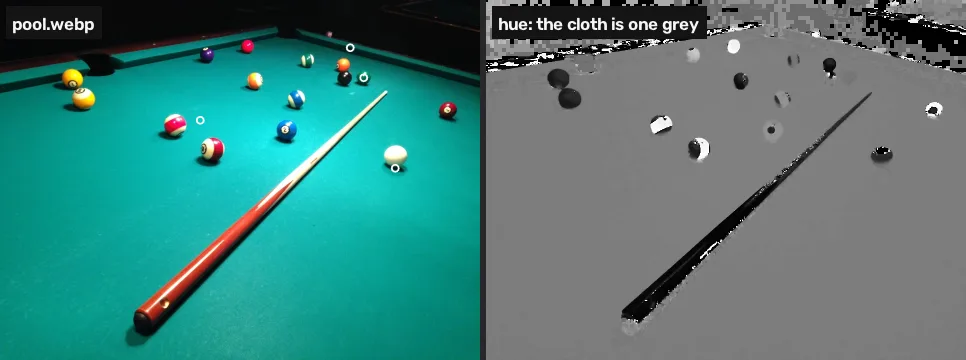
Read pixels of a pool table in HSV with cv2.cvtColor and find the range its cloth takes: its green value falls almost tenfold between the lit end and a shadow while its hue stays between 86 and 90.

To pick an object out of a photo by its colour you need the range of numbers that colour takes, and the quickest way to find it is to read a few of its pixels in HSV.
Where you have met it: the chroma key (green screen) filter in OBS and video editors; Select › By Color in GIMP and Color Range in Photoshop; optical sorters that throw out off-colour grains and fruit.
TL;DR. A colour looks the same to us in light and in shade, but the numbers a camera stores for it change a lot, and one of them, the hue, barely moves, so that is the number to test. On the pool table the cloth’s green value drops almost tenfold, from 201 at the lit end to 21 in the shadow of a ball, while its hue stays between 86 and 90 on OpenCV’s 0–179 scale.
The problem
This module finds every ball on a pool table (the project). The balls come in every colour, but the cloth under them has one, so the plan is to find the cloth and keep what is not cloth. That needs a rule for “cloth” that a computer can test on each pixel.
Read the pixels in HSV
cv2.cvtColor converts a whole image from one colour space to another. With COLOR_BGR2HSV each pixel becomes three new numbers: hue (which colour, 0–179), saturation (how pure, 0–255) and value (how bright, 0–255) [1].
import cv2
import numpy as np

img = cv2.imread("pool.webp")
hsv = cv2.cvtColor(img, cv2.COLOR_BGR2HSV)

# (x, y) of four points on the photo
points = {"cloth, near": (400, 240),
          "cloth, far": (700, 95),
          "shadow": (790, 336),
          "green ball": (727, 155)}
for name, (x, y) in points.items():
print(f"{name:12} BGR {img[y, x]} HSV {hsv[y, x]}")cloth, near BGR [198 201 9] HSV [ 90 244 201] cloth, far BGR [32 37 2] HSV [ 86 241 37] shadow BGR [18 21 0] HSV [ 86 255 21] green ball BGR [ 86 117 5] HSV [ 82 244 117]
| Call | What it does |
|---|---|
cv2.cvtColor(img, cv2.COLOR_BGR2HSV) | a new image of the same size, with H, S and V in place of B, G and R |
img[y, x] | the three numbers of one pixel; row (y) first, then column (x) |
The three cloth points look like one colour to us. In BGR they are far apart: the green channel falls from 201 near the lamp to 37 at the far end and 21 in the shadow of the cue ball, and blue and green fall together, so no single range on any one channel covers all three without also covering most other colours. In HSV the hue is 90, 86 and 86 and only the value moves. That is the property the mask will lean on: brightness has its own number, so a range on hue ignores light and shade [2].
The green ball is the warning. Its hue is 82, four steps from the far cloth. A range wide enough for the cloth in every light may swallow it; lesson 5 counts what that costs.
Find the range over a patch
One pixel can be unlucky. The bottom-right of the photo is only cloth, so its spread is the range to start from:
# a patch of the photo that is only cloth
patch = hsv[550:, 650:]
for i, name in enumerate(["H", "S", "V"]):
    lo, hi = np.percentile(patch[..., i], [2, 98])
    print(f"{name}: {lo:.0f} to {hi:.0f}")
cv2.imshow("hue (0-179)", hsv[..., 0])H: 85 to 88 S: 233 to 253 V: 118 to 163
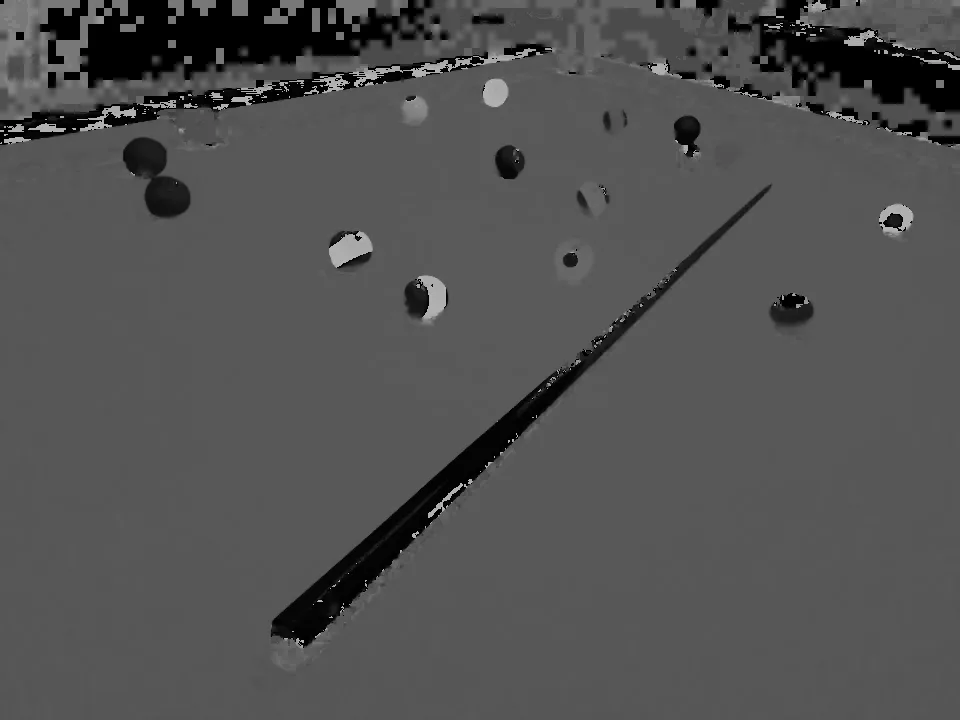
The percentiles drop the extreme 2% at each end, so a stray speck does not set the range. In this patch the hue runs 85 to 88 and the value 118 to 163. The far end of the table and the shadows are darker than anything in the patch (the far cloth sat at 37), so the value range has to reach well below 118. The module starts with a generous window, which lesson 2 turns into a mask:
| H | S | V | |
|---|---|---|---|
| lower | 75 | 80 | 40 |
| upper | 100 | 255 | 255 |
The hue picture shows the cloth as one grey from front to back. The black room above the table is noise: when a pixel is nearly black, the three channels are all close to 0 and the formula divides small differences by a small number, so its hue is close to random [2].
Break it
cvtColor trusts the flag you give it. cv2.imread returns BGR, and the flag for that is COLOR_BGR2HSV. Pass COLOR_RGB2HSV and red and blue are swapped before the conversion:
# RGB2HSV on a BGR image: red and blue swapped
wrong = cv2.cvtColor(img, cv2.COLOR_RGB2HSV)
x, y = points["cloth, near"]
print("right:", hsv[y, x], " wrong:", wrong[y, x])
cv2.imshow("hue, wrong flag", wrong[..., 0])right: [ 90 244 201] wrong: [ 30 244 201]
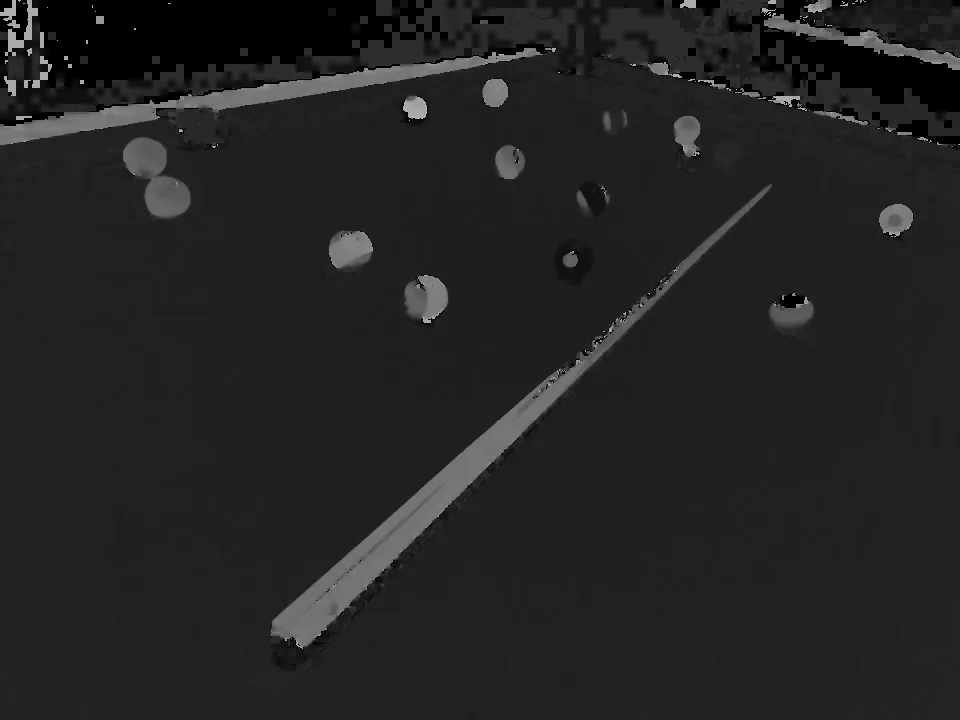
The cloth’s hue comes out as 30, which is yellow on OpenCV’s scale, and a mask built on it would select nothing on the table. There is no error to warn you.
Your turn
Read the purple ball at x = 414, y = 109, and store its hue in hue.
hue = None  # replace this line
print(hue)
Why this works
A camera records how much red, green and blue light reached each pixel, so a surface in shade gives smaller values on all three channels at once. HSV takes the largest of the three as the value and describes the colour by where the three sit relative to each other, which does not change when all three shrink together [2]. Gonzalez and Woods derive the same idea for the closely related HSI model and use it to segment by colour [3]. Colour spaces: choosing axes you can threshold works through the conversion on a single measured chart patch, and how close is your colour measures how far a camera’s colours drift from the real ones.
Common mistakes
- Hue in degrees. Colour pickers give hue on 0–360. OpenCV halves it so it fits in a byte: 0–179 for 8-bit images [2]. The cloth at 88 is about 176 degrees in GIMP.
- The wrong conversion flag.
imreadgives BGR; useCOLOR_BGR2HSV, as the Break it cell shows. - Trusting the hue of dark or grey pixels. When saturation or value is near 0, hue is noise. The cue ball, pure white, reads saturation 11: its hue says nothing.
- Red wraps around. Red sits at both ends of the hue scale, near 0 and near 179, so one range cannot hold it. Colour spaces shows the two-mask fix.
- Reading one pixel. Take a patch and its percentiles, and look at the lit and the shaded parts both.
References
[1] OpenCV. Changing Colorspaces (Python tutorial, doc/py_tutorials/py_imgproc/py_colorspaces/py_colorspaces.markdown). OpenCV 4.11.0, commit 31b0eee. github.com/opencv/opencv
[2] OpenCV. Color conversions, section “RGB ↔ HSV” (modules/imgproc/doc/colors.markdown). OpenCV 4.11.0, commit 31b0eee. github.com/opencv/opencv
[3] Gonzalez, R. C., & Woods, R. E. (2018). Digital Image Processing (4th ed.), section 7.2 “Color Models”, The HSI Color Model, p. 541, and section 7.7 “Using Color in Image Segmentation”, p. 575. Pearson.
[4] MarkBuckawicki. Billiards table 2.JPG (27 Feb 2014). Wikimedia Commons, CC0 1.0. commons.wikimedia.org
